




Claude Code turns your terminal into a coding partner that can read your files, run commands, write tests, and ship pull requests — but most people only ever use a fraction of what it can do. This guide collects 32 practical Claude Code tips and tricks, pulled straight from Anthropic’s own documentation, organized from “install it correctly” to “run a dozen sessions in parallel.”
If you want the broader picture first, our Claude AI tips and tricks for every model guide is a good companion piece — this article zooms in specifically on Claude Code tips for people writing and shipping real software, and pairs well with our beginner’s guide to Claude AI prompts if you’re still new to prompting in general.
Bookmark this page. Whether you’re writing your first prompt or trying to squeeze more out of your context window, these Claude Code tricks will save you real time.
What Is Claude Code?
Before jumping into specific Claude Code tips, it helps to know what the tool actually is. Claude Code is Anthropic’s agentic coding tool. Unlike a chatbot that answers a question and waits, it can read your codebase, make edits, run your test suite, and keep working through a problem while you watch, redirect, or step away. It runs from the terminal, inside VS Code and JetBrains, on the web, in Slack, and in CI/CD pipelines via GitHub Actions or GitLab.
Setup & Installation Tips
1. Install it with a single command
On macOS, Linux, or WSL, run:
curl -fsSL https://claude.ai/install.sh | bash
On Windows PowerShell, use irm https://claude.ai/install.ps1 | iex. Homebrew (brew install --cask claude-code) and WinGet (winget install Anthropic.ClaudeCode) both work too, but only the native installer updates itself automatically in the background — Homebrew and WinGet installs need a manual upgrade now and then.
2. Confirm the install and log in
Run claude --version to confirm it installed correctly, then just type claude to start a session — you’ll be prompted to log in with a Claude Pro, Max, Team, or Enterprise account (or a Claude Console API key) the first time.
3. Always start Claude Code from your project root
Run cd /path/to/your/project before typing claude. Claude Code reads your files as needed rather than requiring you to attach them manually, but it needs to be pointed at the right directory first.
4. Learn the essential slash commands early
Type /help any time to see what’s available. The three you’ll use constantly are /clear (reset the conversation), /resume (pick up a previous session), and / on its own, which shows every command and skill available in that project.
Prompting Tricks That Actually Move the Needle
5. Trade vague requests for specific ones
“Fix the login bug” leaves Claude guessing. “Users report login fails after a session timeout — check the token refresh logic in src/auth/, write a failing test that reproduces it, then fix it” gives Claude a target and a definition of done.
6. Give Claude a way to verify its own work
This is arguably the single highest-leverage Claude Code tip in this list. Claude stops when the work looks done — give it a test suite, a build command, or a screenshot to compare against, and it will run the check itself, read the result, and keep iterating until it actually passes. Without a verification step, you become the verification loop.
7. Reference files with @ instead of describing them
Typing @src/components/Header.tsx in your prompt tells Claude exactly which file to read, which is faster and more reliable than describing where the code “probably” lives.
8. Paste screenshots and images directly into the prompt
Copy an image or drag-and-drop it into the terminal prompt. This is especially useful for UI work: paste a design mockup, ask Claude to implement it, then ask it to screenshot the result and compare the two.
9. Pipe data straight into Claude
Running cat error.log | claude sends a file’s contents directly into the session, which is often faster than copy-pasting a long error log by hand.
10. Let Claude interview you before a big feature
For anything non-trivial, try: “I want to build [feature]. Interview me in detail using the AskUserQuestion tool, then write a complete spec to SPEC.md.” Claude will surface edge cases and tradeoffs you hadn’t considered, and you get a written spec to start a clean implementation session from.
Context & Session Management
Claude’s context window is the resource that actually limits how well it performs — the fuller it gets, the more it “forgets” earlier instructions. These tricks are about protecting it.
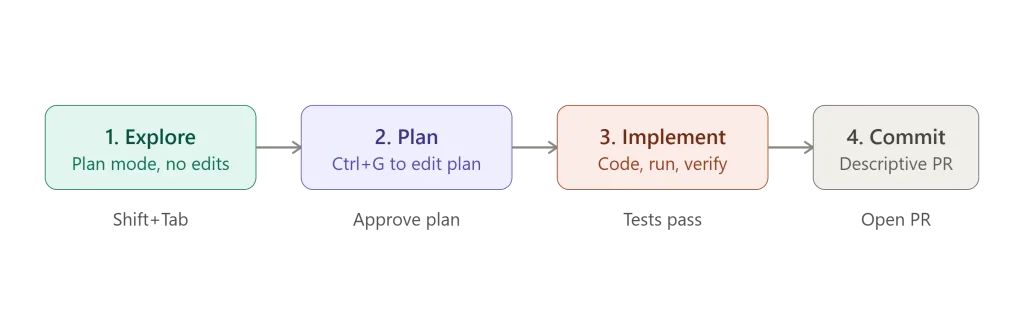
11. Explore, then plan, then code
Press Shift+Tab until the status bar shows plan mode on. In plan mode Claude can read files and answer questions but can’t make edits, which keeps research and implementation cleanly separated. Once you approve the plan, switch out of plan mode and let it build.
12. Interrupt with Esc the moment something looks wrong
Pressing Esc stops Claude mid-action without losing context, so you can redirect immediately instead of waiting for a bad approach to finish playing out.
13. Rewind conversation and code with a double-tap of Esc
Every prompt creates a checkpoint. Double-tap Esc (or run /rewind) to restore the conversation, the code, or both to any earlier point — useful for trying something risky and backing out cleanly if it doesn’t work.
14. Clear context between unrelated tasks
Run /clear before switching topics. A session that’s bounced between three unrelated tasks is carrying irrelevant context that quietly degrades every answer after it.
15. Compact with instructions instead of letting it happen blindly
Claude auto-compacts when context fills up, but you can steer it: /compact Focus on the API changes tells Claude what to prioritize when summarizing. You can also add a rule to CLAUDE.md like “when compacting, always preserve the list of modified files and test commands.”
16. Use /btw for side questions
Need a quick answer without derailing your current task? /btw asks a side question that never enters the main conversation history, so your context stays focused.
17. Name and resume your sessions
claude -c continues your most recent conversation in the current directory, and claude -r lets you pick from a list. Use /rename to give a session a descriptive name like oauth-migration so you can find it again later — treat each one like a Git branch.
Automation & Power-User Tricks
18. Write a short, honest CLAUDE.md
This is one of the most repeated Claude Code tips for a reason. CLAUDE.md loads automatically at the start of every session in that project. Put in it only what Claude can’t infer from the code: non-obvious Bash commands, code style that differs from convention, testing preferences, and repository etiquette. Skip anything Claude could figure out by reading the codebase — a bloated CLAUDE.md causes Claude to ignore your actual instructions.
19. Turn repeatable knowledge into Skills
A SKILL.md file in .claude/skills/ packages domain knowledge or a repeatable workflow that Claude loads on demand instead of on every single conversation — perfect for things you only need sometimes, like API conventions or a “fix this issue” workflow you run often.
20. Delegate research to subagents
Tell Claude to “use subagents to investigate how our authentication system handles token refresh.” Subagents explore in their own separate context window and report back a summary, which keeps your main conversation’s context clean for the actual implementation work.
21. Set up hooks for things that must never be skipped
CLAUDE.md instructions are advisory; hooks are deterministic. If something has to happen every single time — running a linter after every edit, or blocking writes to a migrations folder — ask Claude to write you a hook for it.
22. Connect MCP servers to your real tools
Run claude mcp add to connect Claude Code to things like GitHub, your database, or Figma. Once connected, you can ask Claude to pull an issue, query a table, or pull a design directly into the conversation instead of copy-pasting context by hand.
23. Install plugins instead of reinventing configuration
Plugins bundle skills, hooks, subagents, and MCP servers into one installable package. Run /plugin to browse the marketplace — if you work in a typed language, a code intelligence plugin is worth installing for precise symbol navigation.
24. Run Claude non-interactively for CI and scripts
claude -p "your prompt" runs Claude without the interactive UI, which is how you wire it into pre-commit hooks, CI pipelines, or any automated script. Add --output-format json to get parseable structured output.
25. Fan work out across many files
For large migrations, run /batch <instruction> and Claude splits the work across multiple subagents, each in its own worktree, opening a pull request per chunk. You can also loop claude -p over a file list yourself for full control.
26. Run parallel sessions with worktrees
Git worktrees let you run separate Claude Code sessions on isolated checkouts so their edits never collide. A useful pattern: have one session write a feature (Writer) and a second, fresh session review the diff (Reviewer) — a clean context reviews code more objectively than the session that just wrote it.
27. Add an adversarial review before calling anything “done”
Before treating a task as finished, ask a subagent to review the diff in a fresh context: “Use a subagent to review this diff against PLAN.md. Report gaps that affect correctness, not style preferences.” Because it only sees the result, not the reasoning that produced it, it catches things the implementing session missed.
28. Match your permission mode to the task
Auto mode (the default on Pro, Max, and Team plans) uses a classifier to approve routine actions and only interrupts you for genuinely risky ones. Plan mode blocks all edits until you approve a plan. Switch between modes any time with Shift+Tab depending on how much oversight the task actually needs.
Bonus Claude Code Tips: Keyboard Shortcuts & Quick Wins
- Shift+Tab — cycle through permission modes without typing a command.
- Ctrl+G — open the current plan in your text editor to edit it directly before Claude proceeds.
- Tab for command completion and ↑ for command history — small things that add up over a long session.
- Tell Claude to use CLI tools like
gh,aws, orgcloudfor external services — it already knows how to use them, and authenticated CLI calls avoid the rate limits that unauthenticated API requests hit.
Claude Code Tips & Tricks: FAQ
Is Claude Code free to use?
Claude Code is included with Claude Pro, Max, Team, and Enterprise subscriptions, and it’s also available pay-as-you-go through the Claude Console API. There’s no separate free tier outside of an active Claude subscription. If you’re not sure which plan or model fits your workload, our Claude AI models explained guide breaks down the differences.
What is a CLAUDE.md file and do I really need one?
CLAUDE.md is a plain markdown file Claude reads automatically at the start of every session in that project. It’s not required, but a short one — covering commands, code style, and testing preferences — noticeably reduces how often Claude needs correcting.
Can Claude Code work with any programming language?
Yes. Claude Code works with any language or framework since it operates at the level of your files, terminal, and Git — there’s no language-specific plugin required to get started, though code intelligence plugins can improve accuracy for typed languages.
How do I stop Claude Code from filling up its context window?
Run /clear between unrelated tasks, delegate large research tasks to subagents, and use /compact <instructions> when you want to steer what gets summarized instead of letting auto-compaction decide on its own.
What’s the difference between Claude Code and the Claude API?
Claude Code is a complete agentic coding tool — terminal, IDE extensions, hooks, subagents, and permissions built in. The Claude API is the raw model endpoint developers build their own applications on top of; Claude Code itself is built using that same underlying model.
Related Reading
- Claude AI Prompts: A Beginner’s Guide — start here if you’re new to prompting Claude in general.
- Claude AI Tips and Tricks for Every Model — the broader companion to this Claude Code–specific guide.
- Claude AI Models Explained — useful if you’re deciding which model or plan to run Claude Code on.
Final Thoughts on These Claude Code Tips and Tricks
None of these tips require anything exotic — they’re the same patterns Anthropic’s own engineers use day to day. Start with a short CLAUDE.md, give Claude a way to verify its work, and get comfortable with /clear and plan mode. The rest — subagents, hooks, worktrees, MCP — are worth layering in once the basics feel automatic.
For the complete, always-current reference, see Anthropic’s official Claude Code documentation.



Please log in to leave a comment.