





Claude AI tips that actually change how useful the tool feels are rarely about clever wording — they’re about knowing which feature or which model to reach for. Most people use Claude AI exactly one way: type a question, get an answer, move on. Power users do something different. They pick the right model for the job, they use Projects and Memory so they stop repeating themselves, and they structure prompts in ways that consistently get better output. If you’re new to the Claude AI lineup itself, our guide on every Claude AI model explained is worth reading first — this post builds directly on it.
General Claude AI Tips That Work Across Every Model
Before getting into model-specific tricks, these five Claude AI tips work no matter which model you’re using.
1. Use Projects to stop repeating yourself
Projects let you upload reference files, style guides, or past work once, and every conversation inside that project automatically has that context. If you write for the same publication, manage the same codebase, or handle the same client repeatedly, a Project turns Claude from a blank slate into something that already knows your voice and your standards.
2. Let Memory do the small talk for you
Claude can retain your name, communication style, and ongoing project details across separate conversations, so you’re not re-explaining who you are and what you’re working on every single time. It’s opt-in and fully editable — you can view, edit, or delete anything it remembers at any point. Anthropic’s Help Center has the full rundown if you want to see exactly what gets stored. This one Claude AI tip alone saves more time than almost anything else on this list.
3. Structure prompts with context, task, format, and constraints
The single biggest jump in output quality comes from giving Claude four things up front: the context (what’s this for), the task (what exactly to do), the format (how you want it delivered), and any constraints (length, tone, things to avoid). Vague prompts get vague answers; specific prompts get specific ones. Anthropic’s own prompt engineering documentation covers this in more depth if you want to go further than these Claude AI tips.
4. Use Artifacts for anything you want to see, not just read
If you’re asking for a chart, a webpage, a diagram, or a small interactive tool, say so explicitly — Claude will generate it as a live, editable Artifact in a side panel instead of just describing it in text. This is the fastest way to go from a rough idea to something you can actually click around in.
5. Turn on extended thinking for anything genuinely hard
For math-heavy problems, multi-step logic, or anything where a wrong first instinct would cascade into a wrong answer, enabling extended/deeper reasoning mode lets Claude work through the problem step by step before answering, instead of committing to the first plausible-sounding response.
Model-Specific Cheat Codes
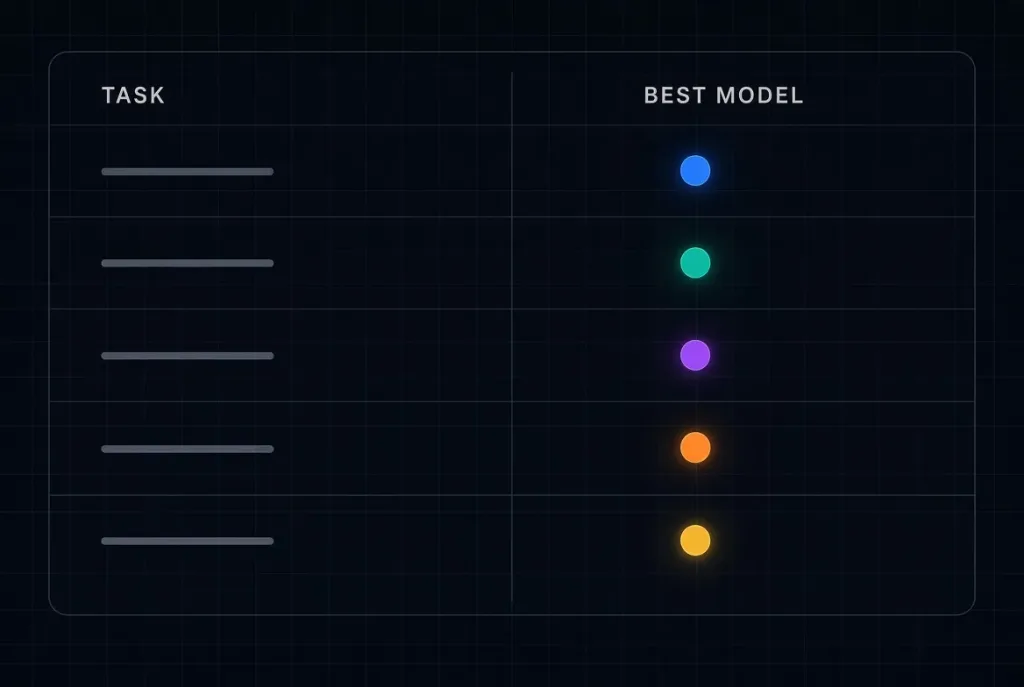
Each Claude AI model tier has a different sweet spot. Here’s how to actually use that to your advantage, building on the breakdown in our Claude AI models comparison guide.
Claude Haiku 4.5: the speed cheat code
Haiku is built to be fast and cheap, so the trick is not asking it to do too much in one pass. Feed it small, well-defined chunks — summarize this one paragraph, classify this one message, extract these three fields — rather than an open-ended multi-part task. Batch similar small requests together rather than sending them one at a time if you’re doing this at volume.
Claude Sonnet 5: the daily-driver cheat code
Sonnet 5 is the model most people should default to, and the trick here is trusting it with genuinely agentic tasks — multi-step research, drafting and revising in the same conversation, browsing and pulling information together — instead of treating it like a simple Q&A box. It’s tuned to work well with tools and multi-turn plans, so give it the full task at once rather than micromanaging every step.
Claude Opus 5: the depth cheat code
Save Opus 5 for work where a shallow answer would actually cost you something — a large codebase refactor, a financial model, a research synthesis across many sources. The cheat code is to explicitly ask it to lay out its plan before executing, especially on long tasks; this catches misunderstandings before Claude spends a long stretch of work going in the wrong direction.
Claude Fable 5: the frontier cheat code
One of the more advanced Claude AI tips: Fable 5 is worth its higher price specifically for long-running, mostly autonomous work — the kind of task where you’d otherwise be checking in every few minutes. The trick is to give it a genuinely complete brief upfront (goals, constraints, what “done” looks like) and then let it run, rather than treating it like a faster Sonnet for short back-and-forth chats, where the price difference isn’t worth it.
Claude Mythos 5: know when you don’t need it
Mythos 5 is restricted to vetted organizations doing defensive cybersecurity work through Anthropic’s Project Glasswing program — it’s not something most readers will ever touch, and that’s fine. If your work touches cybersecurity research at an organizational level, that’s the one case worth inquiring about; for everything else, Opus 5 or Fable 5 already covers it.
Power-User Shortcuts Worth Knowing
These Claude AI tips go a step beyond the basics and separate casual users from people who rely on Claude daily.
- Give examples, not just instructions. Showing Claude one or two examples of the output you want (a “few-shot” prompt) is consistently more reliable than describing the format in words alone.
- Use XML-style tags to separate parts of a complex prompt — wrapping context, instructions, and examples in simple tags like
<context>and<instructions>helps Claude parse exactly what each part of your message is for, especially in longer prompts. - Ask Claude to critique its own draft before you accept it. A quick follow-up like “check this for factual errors and tone before we finalize it” often catches issues a first pass misses.
- Save a Style once you land on a tone you like, instead of re-explaining your preferred voice every time you start a new writing task.
- Connect the tools you actually use. If you’re already working in Gmail, Google Drive, or a project tracker, connecting it lets Claude read real context from your work instead of you having to paste it in manually every time.
Common Mistakes That Waste a Model’s Strengths
Most Claude AI tips lists skip this part, but the most common mistake isn’t a bad prompt — it’s the wrong model for the task. Using Opus 5 for a one-line summary wastes money and adds latency for no benefit; using Haiku 4.5 for a task that needs deep multi-step reasoning gets you a shallow answer fast, which isn’t actually faster once you factor in the redo. The second most common mistake is starting from zero every time instead of setting up a Project once and reusing it — if you find yourself pasting the same background information into Claude more than twice, that’s the signal to build a Project instead.
Final Thoughts
The gap between someone who finds Claude AI “fine” and someone who finds it genuinely transformative usually comes down to these habits, not raw model intelligence. Pick the right model tier for the task, give Claude real context instead of a bare question, and use Projects and Memory so you’re never starting from scratch. For the full picture of how Anthropic and its models got here, see our post on Anthropic’s company history and funding.
Got a Claude AI tip or cheat code we didn’t cover? Share it in the comments, and subscribe to OpenPress.Tech for more AI breakdowns.


Please log in to leave a comment.