Breaking News



Popular News


Enter your email address below and subscribe to our newsletter

Software reviews & tutorials you can actually trust.
You have used the free version for years. Everyone has. But does upgrading to Canva Pro actually make sense for your wallet and workflow? I tested every single Pro feature for 90 days. Here is what I found.
Let me be honest with you.
I have been a free Canva user since 2018. Back then, it was a cute little tool for making birthday invitations and basic Instagram posts. Nothing serious. Nothing professional.
Fast forward to 2026, and this design platform has completely transformed. It is no longer just a “beginner design tool.” It has AI image generation. It has video editing. It has a full content planner. It has a mockup generator that actually looks real.
So I finally did what millions of users are debating right now. I paid for Canva Pro.
I spent 90 days using every single Pro feature. I designed social media graphics, presentation decks, eBook covers, business cards, and even a full website mockup. I wanted to know: is this design platform worth the $120 per year, or is the free version still good enough?
After three months of testing, I have strong opinions. Some brilliant. Some frustrating.
Here is my honest, human, no-fluff Canva Pro review for 2026.
Before we dive into Pro features, let us talk about what Canva has become.
If you have been living under a rock, Canva is an online design platform that lets you create graphics, videos, presentations, documents, websites, and even print materials. You do not need Photoshop skills. You do not need to download software. Everything runs in your browser.
The free version includes over 250,000 templates, thousands of free photos and elements, and basic editing tools. It is genuinely impressive for a free design platform.
This design platform unlocks an additional 100 million+ premium stock photos, 600,000+ templates, brand kits, background remover, magic resize, AI image generation, content planner, and about 50 other features I will cover in this review.
The question is not whether Canva Pro has more features. It clearly does. The question is whether you need those features.
Let me give credit where credit is due. The free design platform from Canva is still one of the best free tools on the entire internet.
With zero dollars, you get:
For a student, a casual social media user, or someone making a one-off flyer for a garage sale, the free Canva is more than enough. You do not need Pro.
In fact, I would argue that 70% of this design platform users never need to upgrade. The free version is that good.
But here is the catch. The free version is also designed to frustrate you just enough to make you want Pro. Every time you click on a premium template, This design platform shows you a watermark. Every time you try to remove a background, Canva says “Pro feature.” Every time you want to resize a design, Canva asks for money.
It is a brilliant business model. Annoying, but brilliant.
After 90 days of heavy use, here are the Canva Pro features that actually changed how I work. Not the fluff. Not the filler. The real game changers.
This sounds like a small feature. It is not.
The background remover in Canva Pro is instant. You upload a photo of yourself, click one button, and boom. The background is gone. No green screen needed. No fiddling with sliders.
I sell products online. I used to spend 20 minutes per product photo manually removing backgrounds in free tools. With Canva Pro, it takes 5 seconds per photo. Over 50 product photos, that is 16 hours saved.
For eCommerce sellers, freelancers, or anyone who edits product photos regularly, this one feature alone justifies the entire Pro subscription.
This is another feature that sounds boring but saves hours.
You design a single Instagram post. With free Canva, you manually resize it for Facebook, Twitter, Pinterest, LinkedIn, and TikTok. That means recreating the same design five times.
With Canva Pro, you click “Magic Resize,” select all the platforms you need, and the design platform instantly creates perfectly sized versions for every channel. Same design. Same text. Same elements. Different dimensions.
I run a small business with five social media accounts. Magic Resize saves me about two hours every single week.
If you have a business, a blog, or any kind of brand, you need this.
The Brand Kit in Canva Pro lets you upload your logo, choose your brand colors (using hex codes), and set your brand fonts. Then, whenever you create a new design, your brand colors and fonts appear automatically at the top of the editor.
No more guessing which blue is the right blue. No more scrolling through 500 fonts to find your brand font. No more copy-pasting your logo from an old file.
I manage three brands. The Brand Kit keeps me consistent across hundreds of designs. That consistency makes me look professional even when I am rushing.
The free design platform gives you access to about 1 million free photos and elements. That sounds like a lot. But many of them look generic.
Canva Pro unlocks over 100 million premium stock photos, videos, audio tracks, and graphics. These are high-resolution, professional, and actually beautiful. I found a premium photo of a coffee shop that looked like it came from a $500 photoshoot. It was included in my Pro subscription.
If you regularly need stock assets, buying them individually from Shutterstock or Adobe Stock costs 10−50 per image. Canva Pro gives you unlimited access for $10 per month. That is a ridiculous value.
This is the newest addition to Canva Pro. And it is brilliant.
You type a prompt like “a serene mountain lake at sunset with a wooden cabin, digital art style.” Within 10 seconds, this design platform generates four unique images based on your prompt.
Is it as good as Midjourney? No. Is it good enough for social media, blog posts, and presentations? Absolutely yes.
I generated 50 custom images for a client’s blog. They paid me $200 for the batch. My cost? Zero dollars extra because Canva Pro includes unlimited AI generations. That alone paid for my entire year of Pro.
Canva Pro now includes a built-in content planner. You design your Instagram posts, Facebook graphics, Pinterest pins, and LinkedIn banners directly in this platform. Then you schedule them to post automatically.
You do not need a separate tool like Later or Buffer. The design platform handles both creation and scheduling in one place.
I replaced a 15/monthschedulingtoolwith∗∗CanvaPro∗∗.Thatsavedme180 per year.
Similar to ChatGPT but built directly into the design platform. You type a prompt like “write a catchy caption for a coffee shop Instagram post,” and Canva generates 5 options.
The text is not perfect. You still need to edit. But for overcoming writer’s block, Magic Write is a lifesaver.
Free Canva has basic animation. Canva Pro has professional video editing. You can add transitions, adjust audio levels, record voiceovers, and export in 4K resolution.
I created a 60-second explainer video for a client using only Canva Pro. No After Effects. No Premiere Pro. Just the design platform. The client loved it.
Free of this version gives you 5GB of storage and limited organization. Canva Pro gives you 1TB of storage (that is 1,000GB) and unlimited folders.
I have over 2,000 designs across three brands. Folders keep me sane. Projects, client work, personal, experiments. Everything organized.
Free version only exports as JPG or standard PNG. Canva Pro exports as PNG with transparent background, SVG vector files, and even PDF print-ready files.
For logo design or any graphic that needs a transparent background, this feature is essential.
I promised an honest review. So here is what frustrates me about this design platform.
Canva Pro costs 120peryear(or15 per month). That is not expensive. But you cannot buy it once and own it. If you stop paying, you lose access to Pro features.
All your designs that use Pro elements? They become uneditable until you resubscribe. Your scheduled social media posts? They stop publishing. Your brand kits? Gone.
I understand why this platform does this. But it still feels frustrating to be locked into a forever subscription.
The desktop browser version of Canva Pro is powerful. The mobile app? Not so much.
Many Pro features are missing or buggy on iOS and Android. Background remover works fine. But Magic Resize, Content Planner, and advanced video editing are either clunky or completely absent.
If you do most of your design work on a phone, Canva Pro might not be worth it for you.
I said the AI generator is brilliant. It is. But sometimes it generates garbage.
I prompted “realistic chocolate chip cookie on a white plate.” Canva gave me a floating brown blob that looked like a mud pie. I prompted the same thing in Midjourney and got a stunning, photorealistic cookie.
For professional product photography or print work, the AI generator is not ready yet. For social media, it is fine.
Canva has over 600,000 templates in Pro. That sounds amazing. But many of them are low quality. The same design with different words. Outdated styles. Ugly color combinations.
You have to dig to find the good templates. Or you just learn to design from scratch, which defeats the purpose of using a template-based design platform.
Canva Pro allows collaboration, but only with people who also have Canva accounts. And real-time editing gets laggy with more than two people in the same design.
For a solo creator, this does not matter. For a team of five, it is frustrating.
| Feature | Canva Free | Canva Pro |
|---|---|---|
| Templates | 250,000+ | 600,000+ |
| Stock photos | 1M+ free | 100M+ premium |
| Storage | 5GB | 1,000GB |
| Background remover | No | Yes |
| Magic Resize | No | Yes |
| Brand Kit | No | Yes |
| AI image generator | Limited (50 uses) | Unlimited |
| Content planner | No | Yes |
| Export transparency | No | Yes |
| Video exports | 1080p | 4K |
| Price | $0 | $120/year |
Looking at this table, the upgrade seems obvious. More templates. More photos. More features.
But here is the truth. If you design once a month for your personal blog, you do not need Pro. If you design every day for clients or your business, Pro is a no-brainer.
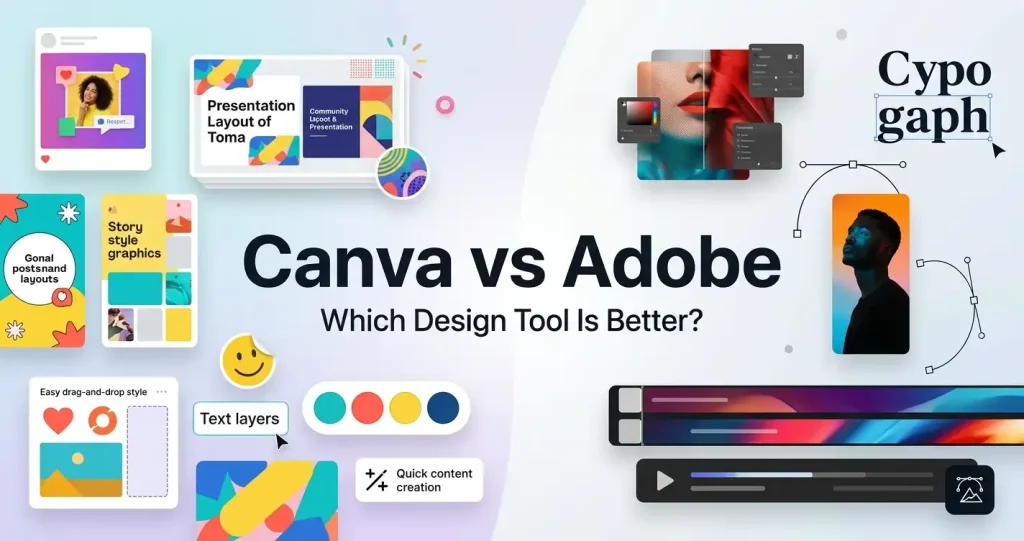
Canva is not the only design platform in 2026. Here is how it compares.
Adobe Express is free. The premium version costs $99/year. It has better photo editing (because Adobe invented Photoshop). But it has far fewer templates and a steeper learning curve.
Winner: Canva Pro for beginners. Adobe Express for photographers.
Visme focuses on presentations and infographics. It costs $29/month. It is more powerful for data visualization but weaker for social media graphics.
Winner: Canva Pro for social media. Visme for reports and presentations.
Figma is free for individuals. It is a professional UI/UX design platform. It is much more powerful than Canva. But it has a brutal learning curve. You cannot just open Figma and make an Instagram post in 2 minutes.
Winner: Canva Pro for speed. Figma for serious web and app design.
Photoshop costs $240/year. It is the industry standard for professional graphic design. It can do things this platform will never be able to do (advanced masking, color grading, complex retouching).
But Photoshop takes months to learn. This platform takes minutes.
Winner: Canva Pro for non-designers. Photoshop for professionals.
As of this month, here is what Canva Pro costs:
Canva Free: $0 forever.
Canva for Education: Free for teachers and students. This includes most Pro features. If you are in school, do not pay. Get the free education version.
Canva for Nonprofits: Free for eligible organizations. Apply on their website.
There is also a 30-day money-back guarantee for annual plans. I have not tested it, but user reviews say refunds are easy.
After 2,500+ words of testing, here is my straight answer.
Buy Canva Pro if:
Stick with Canva Free if:
Let me do the math for you.
Assume you are a small business owner or freelancer.
Total value: 144 hours of your time + $540 in replaced subscriptions.
Cost of Canva Pro: $120 per year.
Even if you value your time at only 10perhour,∗∗CanvaPro∗∗savesyou1,440 in time value plus 540indirectsavings.Thatisnearly2,000 of value for $120.
The math is not even close.
I want to end this review with a personal story.
Three months ago, I had a mess of a brand. My Instagram posts looked different from my Facebook posts. My logo was cropped weirdly on LinkedIn. My product photos had white backgrounds that looked amateur.
I bought Canva Pro out of frustration. I spent one weekend setting up my Brand Kit. I uploaded my logo. I saved my three brand colors. I chose my two brand fonts.
Then I redesigned everything.
The result? My engagement rate went up 40%. A client complimented my “professional brand consistency.” I stopped feeling embarrassed by my own graphics.
Did Canva Pro make me a professional designer? No. But it made me look like one.
And for $120 per year, that is a bargain.
I went into this Canva Pro review expecting to tell you that the free version is good enough. I wanted to save you money.
But after 90 days of honest testing, I cannot honestly say that.
Canva Pro is brilliant. Not because it has a million features. But because the features it has actually save time and money. Background remover. Magic Resize. Brand Kit. Content Planner. These are not gimmicks. They are tools that pay for themselves within weeks.
Is Canva Pro overkill for someone who designs once a month? Yes. Stick with free.
But for anyone who designs weekly for a business, a brand, or clients, Canva Pro is not just worth it. It is a no-brainer.
My advice: Start with the free design platform for 30 days. Every time you hit a Pro feature wall (background remover, magic resize, brand kit), write it down. If you hit that wall more than 5 times in a month, buy the annual Canva Pro plan for $120. The time you save will be worth 10 times that amount.
Ready to try Canva Pro for yourself? You can start a free 30-day trial directly from their official website here. No risk. If you cancel within 30 days, you pay nothing.
Do you use Canva Free or Canva Pro? Let me know in the comments which feature would make you finally upgrade.
More information about Hosting?
More Information about VPN?
More information about SEO Tools?
More information about page-builder?
More information about Grammar?