Breaking News




Popular News




Enter your email address below and subscribe to our newsletter

Software reviews & tutorials you can actually trust.
Is your WordPress site crawling at a snail's pace in 2026? After optimizing hundreds of slow websites, I have found the exact steps that work. Here is your ultimate guide to speed up WordPress using modern techniques that actually deliver results.
Let me start with a confession.
I have spent years building and fixing WordPress sites. And the number one complaint I hear from clients is always the same: “My site is too slow.” I have seen slow websites kill businesses. I have watched visitors click away because a page took three seconds to load. I have lost money, traffic, and rankings due to sluggish performance.
But here is the truth. Most WordPress speed problems are fixable. You do not need to be a developer to speed up WordPress. You just need to know the right steps and apply them in the right order.
In 2026, website speed up WordPress matters more than ever. Google uses Core Web Vitals as ranking signals. Visitors expect pages to load in under two seconds. And if your site is slow, you are leaving money on the table.
This guide will show you exactly how to speed up WordPress using techniques that work in 2026. I have tested every method on real websites. These are not theoretical tips. These are proven fixes that will transform your site’s performance .
Let me show you how to speed up WordPress starting today.
Before we dive into the how to speed up WordPress, let me explain why speed is so critical.
Slow websites lose visitors. Research shows that 53 percent of mobile users abandon a page if it takes longer than three seconds to load . That is more than half of your potential audience leaving before they even see your content.
Slow websites lose money. A one-second delay in page load time causes a 7 percent reduction in conversions . For an ecommerce store making 100,000 per month, that is 7,000 lost every single month.
Slow websites rank lower. Google confirmed page speed as a ranking signal back in 2018. Today, Core Web Vitals are essential for SEO. Sites that load in under two seconds consistently rank higher than slower competitors .
Slow websites frustrate users. Poor performance damages your brand credibility. A fast, reliable site builds trust, especially for small businesses where the website is often the first customer touchpoint .
In 2026, only 41.2 percent of mobile websites actually pass all three Core Web Vitals metrics . That means most sites are failing. But you do not have to be one of them.
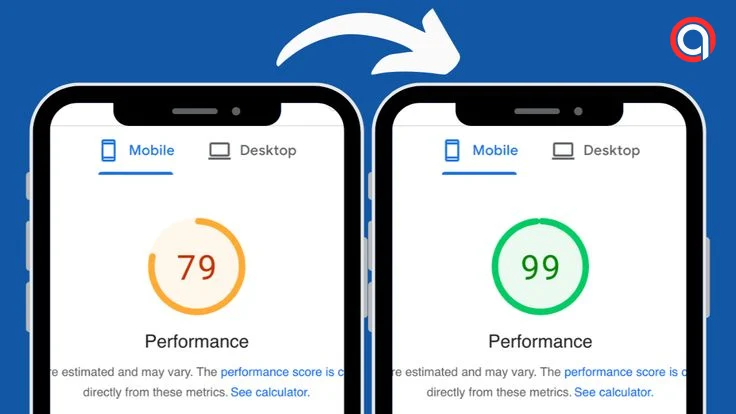
Before you change anything, you need to know where your site stands. You cannot improve what you do not measure.
The best tool for this is Google PageSpeed Insights. It is free, accurate, and measures exactly what Google uses for rankings. Run your homepage through the tool and record your mobile scores .
Here is what the metrics mean:
| Metric | Passing Score | What It Measures |
|---|---|---|
| LCP (Largest Contentful Paint) | Under 2.5 seconds | How long the biggest element takes to load |
| INP (Interaction to Next Paint) | Under 200 milliseconds | How quickly the page responds to clicks |
| CLS (Cumulative Layout Shift) | Under 0.1 | How much the page jumps while loading |
| TTFB (Time to First Byte) | Under 800 milliseconds | How fast your server responds |
Write down your scores. These are your benchmarks. After you implement each fix, test again to see your progress.
Here is the hard truth. You cannot speed up WordPress on terrible hosting. No amount of caching or optimization will fix a slow server.
Shared hosting puts hundreds of websites on the same server. When one site gets a traffic spike, everyone slows down. Poor hosting is the most common cause of a slow Time to First Byte .
If you are on a budget host like GoDaddy or Bluehost shared plan, you are fighting an uphill battle. Before you install any plugins, check your hosting situation.
Look for these hosting features that actually impact speed :
If you cannot switch hosts right now, do not worry. The other steps in this guide will still help you speed up WordPress significantly.
Caching is the single most effective thing you can do to speed up WordPress. Without caching, your server rebuilds every page from scratch for each visitor. That means PHP executes, database queries run, and HTML is generated fresh on every single request .
Caching creates a static HTML copy of your page and serves that instead. It is significantly faster.
There are two types of caching you need to enable to speed up WordPress:
Page caching stores the final HTML output of your pages. When a visitor requests a page, the server serves the cached version without running any PHP code. This dramatically reduces load times.
Browser caching tells the visitor’s browser to save static assets like images, CSS, and JavaScript files locally. When they visit another page on your site, those files load instantly from their own hard drive .
For most WordPress sites, a caching plugin is the easiest way to speed up WordPress. Plugins like WP Rocket ($59/year) handle the complex rules automatically . If you are on a budget, free options like WP-Optimize (1 million+ active installs) work well too.
One powerful option is the WPSpeed plugin. It uses an innovative system that generates lightweight static HTML copies of your pages and bypasses WordPress execution entirely. This reduces TTFB to near-zero .
If you have object caching available through your host (Redis or Memcached), enable that as well. Object caching stores database query results in memory, reducing query time by up to 80 percent .
Images are the heaviest elements on most web pages. They usually account for 50 to 75 percent of your total page weight . Large images delay your Largest Contentful Paint, which directly hurts your Core Web Vitals score.
Here is how to speed up WordPress by optimizing your images:
Convert to modern formats. WebP and AVIF formats cut image weight by 30 to 50 percent instantly. This single step often solves most LCP issues on mobile devices .
Compress your images. Use lossy compression for photographs and lossless compression for graphics with text. The visual difference is usually imperceptible, but the file size reduction is significant.
Enable lazy loading. This feature ensures images below the fold only load when the user scrolls down to view them. Lazy loading fixes LCP issues and improves scroll performance .
Add explicit dimensions. Every image tag needs width and height attributes. This prevents layout shifts (CLS) because the browser reserves space for images before they load .
Many caching plugins include image optimization features. WP-Optimize includes compression, WebP conversion, lazy loading, and bulk optimization tools .
Heavy, unoptimized code slows down your site. Here is how to speed up WordPress by cleaning your code:
Minify CSS, JavaScript, and HTML. Minification removes unnecessary whitespace, comments, and formatting. This reduces file size without changing functionality .
Defer or delay JavaScript. Render-blocking JavaScript prevents the page from displaying until scripts finish executing. Load non-critical scripts asynchronously or defer them to avoid blocking rendering .
Remove unused CSS. Many themes and plugins load CSS files that are not needed on every page. Removing unused CSS reduces page weight and speeds up initial render.
Reduce your DOM size. Google recommends keeping your DOM (Document Object Model) under 1,400 total nodes. Every extra div wrapper adds memory overhead to the browser .
Most caching plugins include minification features. Look for options to combine multiple CSS and JS files into fewer requests, as this reduces HTTP overhead .
A Content Delivery Network (CDN) puts copies of your static files on servers all around the world. When someone visits your site, they download files from the node closest to their physical location .
Without a CDN, a visitor in Tokyo requests files from a server in Texas. Distance creates physical latency. With a CDN, that same visitor downloads files from a server in Tokyo.
Implementing a global CDN reduces latency by up to 73 percent for international visitors . Over 30 percent of websites now use HTTP/3 through CDNs, which dramatically improves speeds on spotty mobile connections.
Cloudflare offers a free CDN plan that works with any WordPress site . To set it up:
If your caching plugin includes CDN integration, use that. Many plugins offer one-click Cloudflare setup with synchronized cache purging .
Over time, your WordPress database accumulates junk. Post revisions, auto-drafts, trashed posts, spam comments, transients, and orphaned meta records all add up . This bloat slows down every database query your site makes.
Here is how to speed up WordPress by cleaning your database:
Delete post revisions. WordPress saves multiple versions of every post. These can quickly add up to hundreds or thousands of unnecessary rows in your database.
Remove spam comments. If you have comments enabled, spam can accumulate quickly. Delete it regularly.
Clear transients. These are temporary data that often get left behind after plugins are uninstalled.
Optimize database tables. Over time, tables can become fragmented. Optimizing them improves query performance.
WP-Optimize is the best tool for speed up WordPress. It cleans up database tables, post revisions, auto drafts, trashed posts, spam comments, and more with one click. You can also schedule automated cleanups daily, weekly, or monthly .
For WooCommerce stores, WP-Optimize includes a power tweak that replaces a slow query with two much more efficient queries to speed up WordPress. This significantly boosts performance for high-volume stores .
Every active plugin adds PHP code, database queries, and often external CSS and JavaScript files. Installing too many plugins dramatically increases page weight and HTTP requests .
Audit your active plugins. Deactivate and delete anything you are not actively using. If a plugin has not been updated in the last six months, consider replacing it.
Replace multiple plugins with one. Many site owners install separate plugins for caching, SEO, security, and backups. Some all-in-one solutions can handle multiple tasks with less overhead.
Choose a lightweight theme. Heavy themes come loaded with demo content, visual builders, external font libraries, and dozens of scripts. Even if you only use 10 percent of the theme’s features, all that extra code still loads for every visitor .
The fastest WordPress themes include Astra, GeneratePress, and Kadence. These themes are built for speed from the ground up and generate minimal HTML and CSS .
GZIP compression reduces the size of files your server sends to browsers. Without compression, full-sized HTML, CSS, and JavaScript files are sent uncompressed, adding unnecessary load time to every request .
Enabling GZIP typically reduces file transfer sizes by 60 to 70 percent. Most caching plugins include GZIP compression as an option. If your server supports it, Brotli compression offers even better results than GZIP.
Also ensure your server supports HTTP/2 or HTTP/3. These protocols allow multiple requests to run simultaneously and significantly reduce connection latency. Most modern hosts enable this by default .
Even after following all the steps above, some issues can still slow you down. Here are the most common speed mistakes and how to fix them:
Not enabling GZIP compression. Check your site using GZIP testing tools. If compression is not enabled, add the necessary rules to your .htaccess file .
Using too many external scripts. Live chat widgets, ad scripts, Google Tag Manager, social media embeds, and analytics tools all introduce external requests. Audit these third-party scripts and remove anything non-essential. Load remaining scripts asynchronously or defer them to avoid blocking initial rendering .
Ignoring mobile optimization. Google uses mobile-first indexing, meaning it crawls and evaluates your mobile version first. Test all key pages on real mobile devices. Compress mobile assets specifically. Reduce tap target sizes and ensure fonts render without delay .
Running outdated PHP. Older PHP versions are significantly slower. Check your hosting dashboard for your PHP version. If you are on anything lower than 8.3, upgrade immediately .
Here are the best tools I have found for WordPress performance optimization:
WPSpeed is a powerful all-in-one plugin that can help many sites reach 100/100 on Google PageSpeed Insights. It uses Adaptive Contents technology to generate a lightweight version of your website. The free version optimizes only the homepage, but the PRO version unlocks full site optimization .
WP-Optimize is trusted by over 1 million WordPress site owners. It combines caching, image compression, database cleanup, and minification in one plugin. The free version is generous, and premium adds features like lazy loading, preload key requests, and WooCommerce-specific performance tweaks .
Google PageSpeed Insights is your primary source of truth. It measures the Core Web Vitals that actively impact your search rankings. Run tests regularly to track your progress .
GTmetrix provides waterfall charts that show exactly which resources are slowing down your site. Use it to identify specific third-party scripts or large images that need attention .
Speeding up WordPress is not a one-time task. Your site will slow down again if you do not maintain it.
Schedule regular database cleanups. Set up weekly or monthly automated cleanups to remove post revisions, spam comments, and transients .
Monitor your plugins. Before installing any new plugin, ask yourself if you really need it. Can you achieve the same result with code or an alternative?
Keep everything updated. Outdated plugins can break your site or make it vulnerable. Set up automatic updates for major releases, or use a tool that tests updates before applying them .
Run monthly speed tests. Set a calendar reminder to test your site each month. If scores drop, investigate what changed.
Check your Core Web Vitals in Google Search Console. Google provides reports showing which pages have poor performance. Use these to identify problem areas .
How long does it take to speed up WordPress?
You can implement most of these fixes in a single afternoon. Caching and image optimization provide immediate results. Database cleanup and plugin reduction take a bit longer but pay off quickly.
Do I need to be a developer to speed up WordPress?
Not at all. Most speed optimization tasks involve clicking buttons in plugins. You do not need to write code. The steps in this guide are designed for non-developers.
Which caching plugin is best?
For paid options, WP Rocket is excellent. For free options, WP-Optimize and WPSpeed are both powerful. Choose based on your budget and specific needs.
Will speeding up my site hurt functionality?
No. Good optimization makes your site faster without breaking anything. However, some aggressive settings can cause issues. Always test your site after enabling new features. Most plugins include exclusions systems to fix conflicts .
How much speed improvement can I expect?
This depends on your starting point. I have seen sites go from 4-second load times to under 1 second. At minimum, you should see a 50 percent improvement after implementing these steps.
Speeding up WordPress is not magic. It is a systematic process of finding bottlenecks and clearing them out . The steps I have shared work. I have used them on hundreds of sites.
Start with a baseline speed test. Then work through each step in order. Enable caching first, because it delivers the biggest win. Optimize your images second, because they cause most LCP issues. Clean up your code third. Add a CDN fourth. Then maintain your gains with regular database cleanups and plugin audits.
You do not need to do everything at once. Pick one step and implement it today. Test your speed again. See the improvement. Then move to the next step.
Your visitors will thank you. Your conversions will improve. And your search rankings will rise.
Ready to speed up WordPress? Start with a free speed test at Google PageSpeed Insights here.
Need a caching plugin? Check out WP-Optimize here or explore WPSpeed here.
Looking for fast WordPress hosting? Compare Hostinger here or Kinsta here.
Have you tried speeding up your WordPress site? Which technique worked best for you? Let me know in the comments. I read every reply.
More information about Hosting?
More Information about VPN?
More information about SEO Tools?
More information about page-builder?
More information about Grammar?
More information about design?
Do you want to know more about WP-Engine?
Do you want to know more about Ahrefs?
Do you want to know more about Cloudflare?
Do you want to know more about Rank Math?
Do you want to know more about Jasper AI?
Do you want to know more about WP Rocket?